Customize Collections Wishlist Icon and Variant Selector Settings
Customizing the Wishlist icon on your collections tile and Enabling Variant Selection
This guide provides a streamlined way to enable and customize the Wishlist Plus button on your Collections (Product Listing) page directly from the Shopify Theme Editor. You no longer need support to manage these settings.
Why Enable Wishlist Plus on the Collections Page?
Adding the Wishlist Plus button to your Collections page offers several benefits:
- Enhanced User Engagement: Makes it easy for customers to bookmark items directly from the Collections page, especially on mobile devices.
- Customizable Visuals: Allows you to seamlessly match the button’s look and feel with your brand.
- Improved Shopping Experience: Helps customers save their favorite items as they browse, which can drive return visits and improve conversion rates.
Quick Setup: Configure Wishlist on Collection
- Navigate to your Shopify Admin.
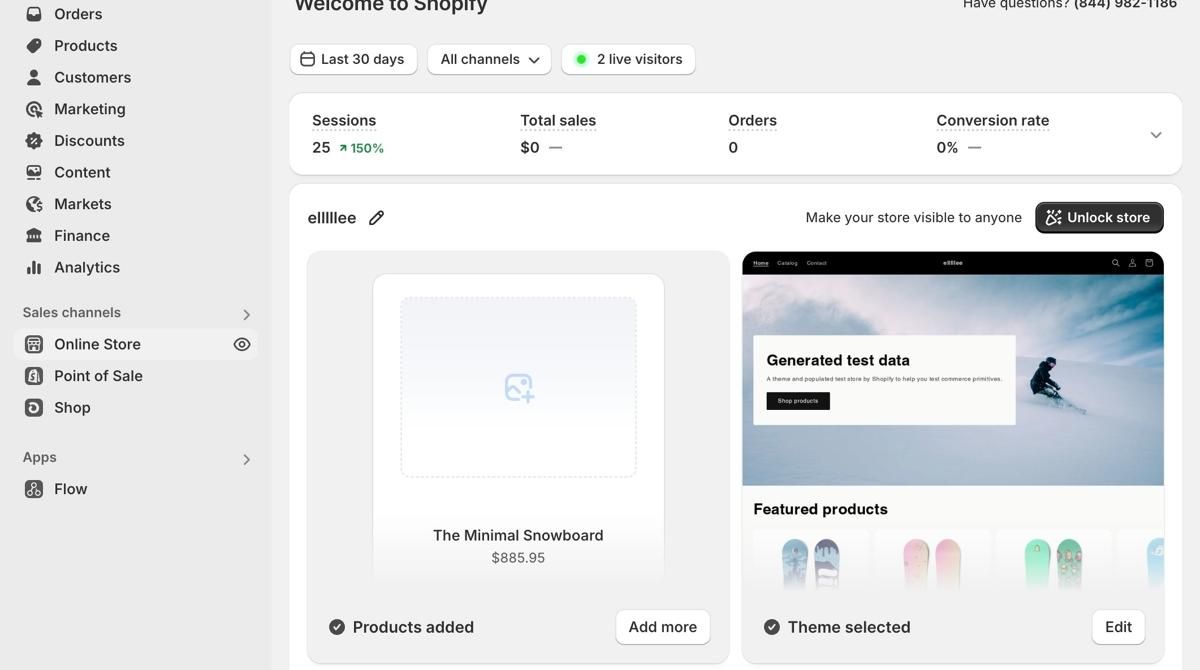
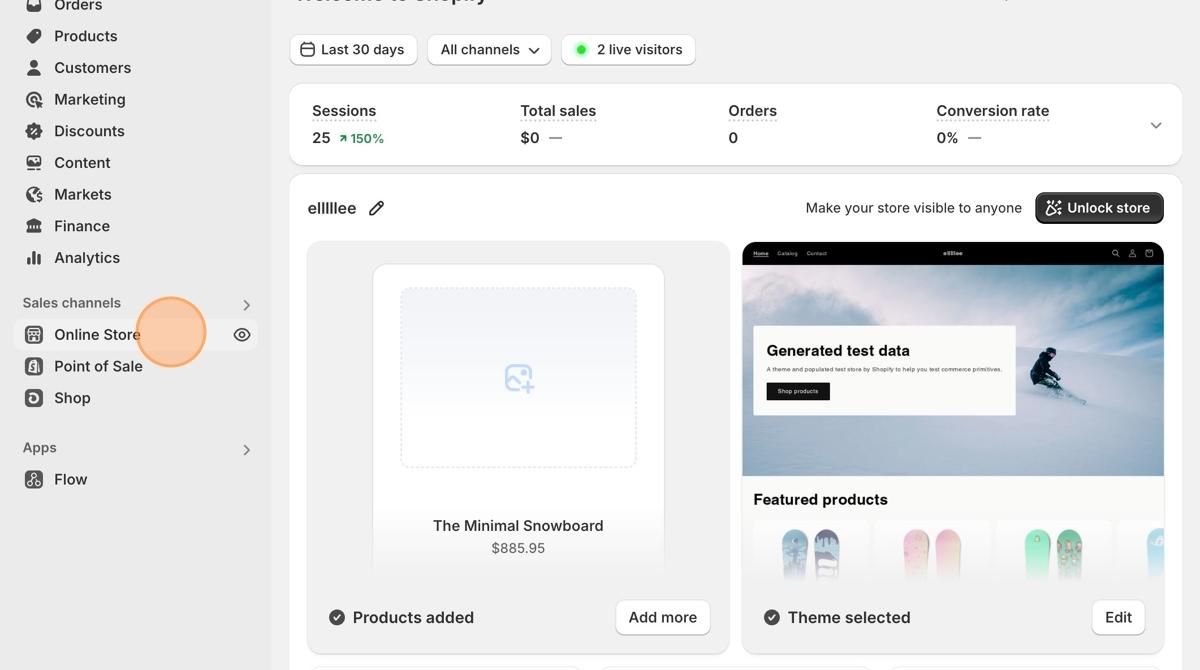
2. Go to Online Store.
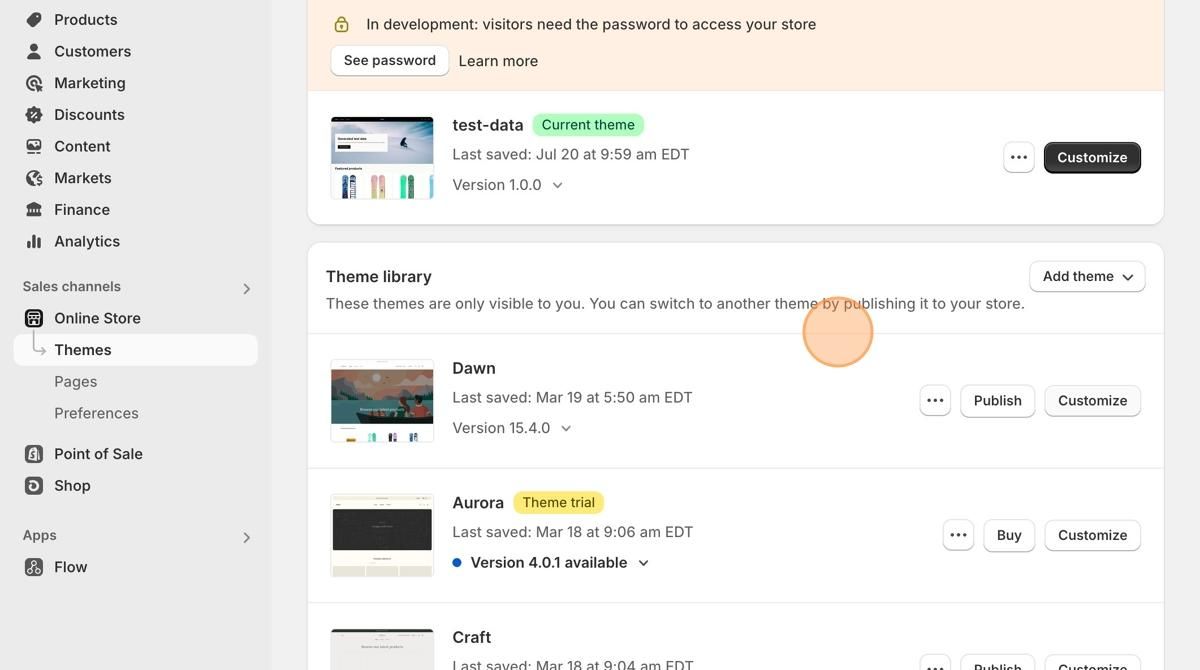
3. To edit the Wishlist button on your collections or product listing page, click Customize.